![Inven logo.png]](https://help.inven.ai/hs-fs/hubfs/Inven%20logo.png?height=40&name=Inven%20logo.png)
How to save companies to a list
Step 1: Create a New List
Start by creating a new list and giving it a name.
Your list will be created automatically and can be accessed from the top-right of your dashboard or by clicking "My List" in the top-left menu bar.
Step 2: Add Companies to Your List
Browse your search results and save the companies you’re interested in.
- Save individual companies by clicking the save button. Once clicked, it will automatically save to your active list (as seen top right menu).
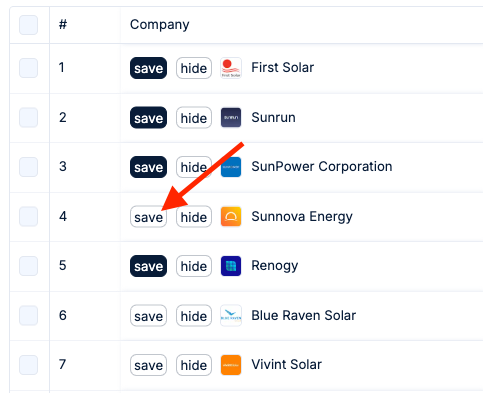
Alternatively, you can also: -
Use the checkbox on the left column to select individual companies. Once selected, a Save button will appear above the search results table, and then click on the save button to save the selected companies.
-
To select multiple at once, use bulk select or shift-click a range.
.gif?width=688&height=577&name=Invengif_bulkselect%20(1).gif)
(See timestamp 1:08)
How to Find Saved Lists
To access your automatically saved lists, head to the top-right of your dashboard, right beside the company search bar. Click the downward arrow to open a dropdown of all your lists. Alternatively, you can click "My List" in the top-left menu. Choose any list to view its contents.
Simple as that!
.gif?width=565&height=463&name=keywords-405b7304f2456b9d1361b5eb33b4a900%20(1).gif)
Note: Your lists, along with the search criteria used (available in your Search History), are automatically saved by Inven unless you choose to delete them