
Connect your CRM to keep your pipeline current, without manual work:
-
See which companies in Inven search results already exist in your CRM
-
Filter out overlapping targets to focus on new opportunities
-
Export companies and contacts from Inven directly to your CRM*
*Direct CRM export is not supported for DealCloud.
Supported CRMs: HubSpot, Salesforce, Navatar, Attio, Affinity, and DealCloud.
Need a CRM integration not listed here?
Reach out to your Inven contact or info@inven.ai to discuss more.
Learn how to set up and use Inven's CRM integrations:
Jump to section ⬇️
- How to connect Inven with:
Hubspot, Salesforce, Attio, Navatar
Connect with these steps:
- From the bottom left in Inven, click Account > Settings > CRM integrations
- Ensure you've logged into your CRM in another tab.
- Look for the your CRM's logo and click on it
- Accept the integration request on your CRM
- Click on Refresh data to start syncing.
- That's it! Every company found in your CRM will now be marked with the CRM's logo in Inven's search results.
Salesforce administrators: Before your team can connect, some initial setup is required on the Salesforce side. See this guide for instructions.
Affinity
Connect Affinity with these steps:
- Go to Account → Settings → CRM integrations → Affinity
- Enter your Affinity API key
- You can get this from Affinity, or ask your organization’s Affinity admin
- Click Save! Syncing will start automatically.
- Configure what Inven columns to include in exports to Affinity.
Note: Your integration settings are applied to all Inven users in your team.
With the Inven-Affinity integration, you can:
- See which companies already exist in Affinity in your Inven search results
- Filter out overlaps in one click to focus on new, untapped opportunities
- Export companies and contacts with rich data from Inven to Affinity
This short video shows how to connect and use the Affinity integration:
DealCloud
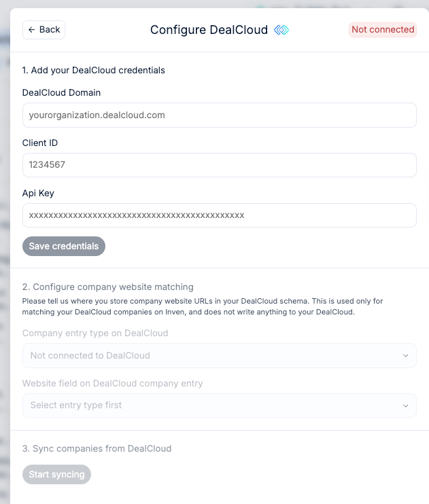
This integration lets you sync company data from DealCloud into Inven through your own API — helping you quickly identify new, untapped opportunities.
You can now exclude companies that already exist in your CRM with just one click. This makes it easier to find fresh opportunities your team hasn’t engaged with before.
The DealCloud integration can be found via Account > Settings > CRM integrations. Add your DealCloud credentials:
How the integration helps you:
- One-way integration: Data flows from DealCloud to Inven, allowing Inven to recognize which companies already exist in your CRM.
- Smarter search: Exclude companies already in your CRM with one click and instantly get a list of new, untapped opportunities.
- Guided setup: Our Customer Success team can help you get started.
What you can do once your CRM is connected
Export Companies and Contacts to your CRM
- Export companies directly to your CRM as a list or as individual contacts.
- Choose whether to export companies or contact details.
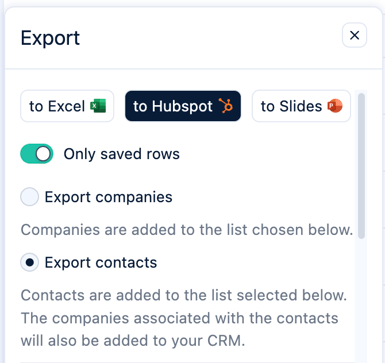
Note: The companies associated with the contacts will also be added to your CRM by selecting "Export contacts".
- Select or create a list within your CRM to export your data.
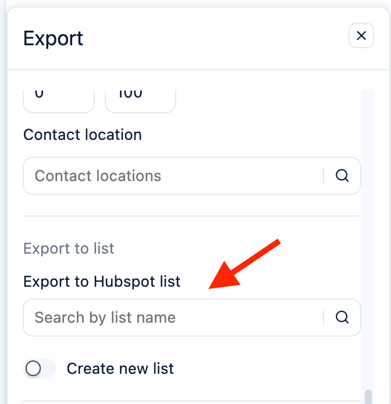
Note: Current datapoints that are exported by default are: company name, website, contact details.